Back to Blog

Back to Blog
9 Real Fixes That Took My Next.js App's PageSpeed Score From Under 60 to 100
Jul 09, 2026
13 min read
9 Real Fixes That Took My Next.js App's PageSpeed Score From Under 60 to 100
I spent weeks chasing this. My PageSpeed score was sitting under 60, and for a while I genuinely didn't know why. Nothing "obviously" wrong — no giant unoptimized hero image, no missing alt tags, nothing a five-minute audit would catch.
It turned out to be nine separate things, none of which alone would have moved the score much. Together they took it to 100.
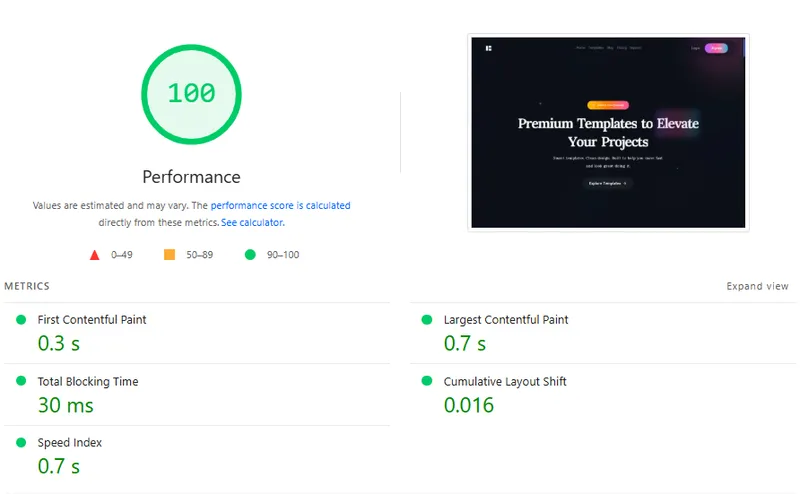
This isn't a generic "compress your images" checklist. Every fix below is something I actually found broken in a real, months-old Next.js codebase. For each one I'm giving you the general fix (works in any React project) and the Next.js-specific version (if you're on Next.js, do both).
1. GSAP Animations Running on Every Effect Cycle
The problem
Animations were noticeably delayed on load, and it was dragging down my Largest Contentful Paint (LCP). I dug in and found the culprit: I was initializing GSAP inside a plain useEffect.
That's a performance problem for two reasons. First, in React Strict Mode (which runs in development, and increasingly matters for how you should write effects generally), effects fire twice — so animations were registering twice, doubling work that should've only happened once. Second, useEffect gives you no built-in cleanup discipline for animation instances, so timelines and listeners can pile up across re-renders.
The general fix: useGSAP instead of useEffect
The @gsap/react package ships a hook built specifically for this.
JSX
// ❌ Before — no automatic cleanup, double-fires in Strict Mode
useEffect(() => {
  gsap.from(".hero-title", { opacity: 0, y: 40, duration: 1 });
}, []);
JSX
// ✅ After — cleanup is automatic, scoped to the container
import { useGSAP } from "@gsap/react";
import { useRef } from "react";

function Hero() {
  const container = useRef(null);

  useGSAP(
    () => {
      gsap.from(".hero-title", { opacity: 0, y: 40, duration: 1 });
    },
    { scope: container }
  );

  return <div ref={container}>{/* ... */}</div>;
}
useGSAP reverts every animation, tween, and ScrollTrigger created inside it when the component unmounts or re-runs — you don't write a single line of cleanup code yourself.
The Next.js-specific addition
GSAP is a sizeable package, and by default Next.js won't tree-shake its internals as aggressively as it could. Add it to optimizePackageImports so the compiler only bundles what you actually import:
JS
// next.config.js
module.exports = {
  experimental: {
    optimizePackageImports: ["gsap"],
  },
};
2. Fonts That Were Quietly Costing Megabytes
The problem
This one was worse than I expected once I actually measured it. I was importing raw .ttf files — not .woff2 — and on top of that I was loading both the variable font file and separate files for individual weights. I was shipping several megabytes of font data for text.
The general fix
A few things, stacked:
Self-host your fonts. Don't rely on an external font server (like Google's) for a file that sits on your critical rendering path — every external request is DNS lookup + connection + download before the text can even paint.
Use .woff2, not .ttf. woff2 is a compressed format built for the web; ttf isn't compressed at all. Same font, dramatically smaller file.
Use the variable font instead of per-weight files, if one exists. A variable font contains every weight (and sometimes width/slant) in a single file, and the browser interpolates between them. Instead of requesting Font-Regular.woff2, Font-Medium.woff2, Font-Bold.woff2 — five or six separate requests — you request one file and every weight is available.
Subset the font. A font file typically contains glyphs for every character it supports — Latin, Arabic, Cyrillic, symbols, all of it — even if your site only ever renders 40 of those glyphs. Subsetting strips the file down to only the characters you actually use. On a site using a single script, this alone can cut a font file by more than half.
You can subset with fonttools:
BASH
pip install fonttools brotli

pyftsubset MyFont-Variable.ttf \
  --output-file=MyFont-Variable-subset.woff2 \
  --flavor=woff2 \
  --unicodes=U+0000-00FF,U+0600-06FF \
  --layout-features="*"
Or with glyphhanger, which can even crawl your built pages and figure out exactly which characters you use:
BASH
npm install -g glyphhanger

glyphhanger https://yoursite.com --formats=woff2 --subset=./fonts/MyFont-Variable.ttf
The Next.js-specific fix
next/font does almost all of this automatically:
JSX
// app/layout.tsx
import localFont from "next/font/local";

const myFont = localFont({
  src: "./fonts/MyFont-Variable.woff2",
  variable: "--font-primary",
  display: "swap",
});

export default function RootLayout({ children }) {
  return (
    <html lang="en" className={myFont.variable}>
      <body>{children}</body>
    </html>
  );
}
Or for a Google font:
JSX
import { Cairo } from "next/font/google";

const cairo = Cairo({
  subsets: ["arabic", "latin"],
  variable: "--font-cairo",
  display: "swap",
});
With next/font, the font is automatically self-hosted at build time (no request to Google at runtime), the subsets you specify are applied, and Next.js calculates fallback font metrics so there's no layout shift when the real font loads in — you get self-hosting, subsetting, and CLS prevention without wiring any of it up by hand.
3. Components Loading Before They Were Needed
(This one didn't make it into the original LinkedIn post, but it's part of the same pass.)
The problem
Heavy components — charts, modals, anything below the fold — were bundled into the initial JavaScript payload and downloaded whether or not the user ever scrolled to them or opened them.
The general fix: lazy + Suspense
Split any component that isn't needed for the initial paint into its own chunk:
JSX
import { lazy, Suspense } from "react";

const AnalyticsChart = lazy(() => import("./AnalyticsChart"));

function Dashboard() {
  return (
    <Suspense fallback={<ChartSkeleton />}>
      <AnalyticsChart />
    </Suspense>
  );
}
The browser doesn't fetch AnalyticsChart's code until React actually needs to render it.
For content that's below the fold — where "needed" means "the user scrolled to it" — pair this with an IntersectionObserver so the component only mounts once it's about to enter the viewport:
JSX
function useInView(ref) {
  const [inView, setInView] = useState(false);

  useEffect(() => {
    const observer = new IntersectionObserver(([entry]) => {
      if (entry.isIntersecting) {
        setInView(true);
        observer.disconnect();
      }
    });

    if (ref.current) observer.observe(ref.current);
    return () => observer.disconnect();
  }, [ref]);

  return inView;
}
The Next.js-specific fix: next/dynamic
JSX
import dynamic from "next/dynamic";

const AnalyticsChart = dynamic(() => import("./AnalyticsChart"), {
  ssr: false,
  loading: () => <ChartSkeleton />,
});
next/dynamic gives you automatic code splitting, a way to opt a component out of server-side rendering entirely (ssr: false — useful for anything that depends on window or is genuinely non-critical), and a dedicated loading state while the chunk downloads.
4. A Three-Layer Cache for Images
The problem
Every image request was hitting the same processing path, every time, for every user.
The fix — three layers, in order of "closest to the user"
Layer 1 — Client & Edge. The layer closest to the user is the browser itself. Set proper HTTP cache headers so a returning visitor doesn't re-download an image they already have, and put a CDN in front of your images so repeat requests never even reach your server.
JS
// inside a route handler serving an optimized image
return new Response(imageBuffer, {
  headers: {
    "Content-Type": "image/webp",
    "Cache-Control": "public, max-age=31536000, immutable",
  },
});
Layer 2 — Application. Cache the processed image on disk on your own server. If the same image has already been resized/converted once, the next request for it should read from disk, not redo the work.
JS
import fs from "fs/promises";
import path from "path";

async function getCachedImage(key) {
  try {
    return await fs.readFile(path.join(CACHE_DIR, key));
  } catch {
    return null; // cache miss — fall through to storage layer
  }
}
Layer 3 — Storage. Only if both layers above miss do you actually touch the original file: pull it from storage, run it through sharp for resizing/format conversion, then write the result back into the application cache and let it get an HTTP cache header on the way out to the client.
JS
import sharp from "sharp";

async function processAndCache(key, sourceBuffer) {
  const optimized = await sharp(sourceBuffer)
    .resize(800)
    .webp({ quality: 80 })
    .toBuffer();

  await fs.writeFile(path.join(CACHE_DIR, key), optimized);
  return optimized;
}
The point of layering it is that the expensive step — the actual sharp processing — only ever runs once per image, no matter how many times it's requested afterward.
There's no Next.js-specific version of this one. It's a server-side concern; it doesn't touch anything framework-specific.
5. Caching Inside Route Handlers
The problem
Route handlers that returned the same data on every hit were doing the full query/computation every single time, for every request.
The fix
Start simple: keep a Map (or your language's equivalent fast key-value structure) in memory, and serve from it for a short window before recomputing.
JS
const cache = new Map();
const TTL_MS = 60_000;

export async function GET(request) {
  const key = request.url;
  const cached = cache.get(key);

  if (cached && Date.now() - cached.timestamp < TTL_MS) {
    return Response.json(cached.data);
  }

  const data = await fetchExpensiveData();
  cache.set(key, { data, timestamp: Date.now() });

  return Response.json(data);
}
The catch: a Map lives in the memory of a single server instance. If you're running more than one instance (which most production deployments do), each instance has its own cache — a request that hits instance A won't benefit from data instance B already cached. Once you're past a single instance, move this into a shared in-memory store like Redis so there's one source of truth for the cached data:
JS
import { createClient } from "redis";

const redis = createClient({ url: process.env.REDIS_URL });
await redis.connect();

export async function GET(request) {
  const key = request.url;
  const cached = await redis.get(key);
  if (cached) return Response.json(JSON.parse(cached));

  const data = await fetchExpensiveData();
  await redis.setEx(key, 60, JSON.stringify(data));

  return Response.json(data);
}
6. General CSS Optimization
(Also not in the original LinkedIn post — worth having written down properly.)
The general fix
A handful of standard moves, none of them Next.js-specific:
- Eliminate dead code. Ship only the CSS your project actually uses. Tools like PurgeCSS scan your markup/JSX and strip out unused selectors.
- Minify. Run your CSS through a minifier — Lightning CSS is a fast modern option — and serve it gzipped.
- Preload non-critical CSS. For stylesheets that aren't needed for the initial paint, load them without blocking render:
HTML
<link
  rel="preload"
  href="/styles/below-fold.css"
  as="style"
  onload="this.rel='stylesheet'"
/>
- Avoid
@importinside CSS files.@importforces the browser to discover and fetch that stylesheet sequentially, after the file that imports it — it can't be fetched in parallel the way a<link>tag can.
CSS
/* ❌ Blocks — browser must finish parsing this file before it even
   knows to fetch base.css */
@import url("base.css");
HTML
<!-- ✅ Both are discovered and can download in parallel -->
<link rel="stylesheet" href="base.css" />
<link rel="stylesheet" href="theme.css" />
An example PurgeCSS setup for a non-Next.js project:
JS
// postcss.config.js
module.exports = {
  plugins: [
    require("@fullhuman/postcss-purgecss")({
      content: ["./src/**/*.html", "./src/**/*.jsx"],
    }),
  ],
};
The Next.js-specific note
You generally don't need to wire up gzip, Lightning CSS, or PurgeCSS by hand — Next.js's built-in CSS handling minifies and optimizes for you by default. The one thing worth doing is actually checking the docs for the exact version you're on, since defaults have shifted across releases and it's worth confirming rather than assuming.
7. serverExternalPackages and optimizePackageImports
(Next.js-specific — no general-purpose equivalent, since this is about how the Next.js compiler decides what to bundle.)
These two next.config.js options solve opposite problems:
serverExternalPackages — for packages that only ever run on the server and have no reason to be bundled into your app's JS at all. Think image-processing libraries with native bindings (sharp), database clients and ORMs, or anything that depends on Node-specific APIs.
optimizePackageImports — for packages with a large number of exports where you only use a handful. Icon libraries (lucide-react, react-icons) and utility libraries (lodash) are the classic case — without this, importing one icon can pull in far more than you'd expect.
JS
// next.config.js
module.exports = {
  serverExternalPackages: ["sharp", "@prisma/client"],
  experimental: {
    optimizePackageImports: ["lucide-react", "lodash", "gsap"],
  },
};
8. Deferring Non-Critical Work With requestIdleCallback
(The last one that didn't make the LinkedIn post.)
The problem
Analytics calls and metric logging were competing for main-thread time with actual rendering work — work the user is waiting on.
The fix
requestIdleCallback schedules a function to run only when the browser has spare time — after it's done with anything more urgent, like painting or responding to input.
JS
function scheduleAnalytics(event) {
  if ("requestIdleCallback" in window) {
    requestIdleCallback(() => sendAnalytics(event));
  } else {
    // Safari doesn't support requestIdleCallback — fall back gracefully
    setTimeout(() => sendAnalytics(event), 1);
  }
}
Nothing about analytics needs to happen the instant an event fires. Letting the browser decide when it has room for that work keeps it from ever competing with something the user can actually see or feel.
9. Dropping shadcn/ui and HeroUI for Custom Components
The problem
I was using shadcn/ui, and HeroUI in a few places. Both are excellent libraries — but under the hood they pull in Framer Motion, React Aria, and several other dependencies. Even when I was only using a fraction of what a component offered, the compiler still had to bundle everything those dependencies brought with them. That's dead code sitting in the bundle, directly affecting load time.
The fix
For components with genuinely simple behavior — dialogs, dropdowns, modals — I replaced the library versions with small custom implementations using plain CSS animations instead of Framer Motion, and manual ARIA attributes instead of React Aria.
JSX
function Modal({ isOpen, onClose, children }) {
  if (!isOpen) return null;

  return (
    <div className="modal-overlay" onClick={onClose}>
      <div
        className="modal-content"
        onClick={(e) => e.stopPropagation()}
        role="dialog"
        aria-modal="true"
      >
        {children}
      </div>
    </div>
  );
}
CSS
.modal-overlay {
  position: fixed;
  inset: 0;
  background: rgba(0, 0, 0, 0.5);
  display: flex;
  align-items: center;
  justify-content: center;
  animation: fadeIn 0.15s ease-out;
}

.modal-content {
  animation: slideUp 0.2s ease-out;
}

@keyframes fadeIn {
  from { opacity: 0; }
  to { opacity: 1; }
}

@keyframes slideUp {
  from { transform: translateY(16px); opacity: 0; }
  to { transform: translateY(0); opacity: 1; }
}
This isn't a blanket "never use component libraries" take — for complex, accessibility-heavy patterns, a well-maintained library is often the right call. But for the handful of simple, high-traffic components on a performance-sensitive page, the custom version does the same job with a noticeably smaller footprint.
Where This Landed
None of these nine changes were individually dramatic. Together, they took the PageSpeed score from under 60 to 100. The pattern behind almost all of them is the same: ship less JavaScript than you think you need, and let the browser (or Next.js) do work only when it actually has to.
If you're mid-project and want to check where you stand, the fastest place to start is your Network tab, sorted by size — it'll usually point you straight at whichever of these nine is costing you the most.
Found this useful? share it with a dev who needs it and show some love by following me on Linkedin — More coming.
Related Topics
#Next.js#React#Web Performance#JavaScript#TypeScript#Frontend Development#CSS#Web Development